
How to Make A Teams Meeting: Navigating Microsoft’s Virtual Meetings
The Short Answer: Making a Microsoft Teams meeting takes about a minute. Open the Calendar in Teams or Outlook, click New meeting, add a title, your attendees, and a start and end time, then save to generate a meeting link you can share. The harder part is finding a quiet, professional place to actually take the call, which is where a room or desk at Roam comes in.
Virtual meetings run the workday for most hybrid and remote teams. Microsoft Teams is the preferred platform for most companies, since it ties into Outlook, the remaining Microsoft 365 tools, and many teams already utilize the Teams chat feature. Setting up a meeting is simple once you know where to look, and there is more than one way to do it depending on your use case.
This guide walks through how to make a Teams meeting from the calendar, from Outlook, inside a channel, and on the fly, plus a few tips for running a meeting people actually remember.
Before You Start: Get Set Up on Teams
A couple of quick things to check first:
- Download Teams app or open Teams in a browser. You can use the desktop app, the mobile app, or run Teams in a web browser. The desktop application gives you the most reliable experience for video and screen sharing.
- Know which account you are using. Scheduling through the Teams calendar works best with a work or school account. A personal Microsoft account has limits on the calendar and on channel meetings.
- Check your calendar sync. The Teams calendar connects to your Outlook calendar, so a meeting you schedule in one platform shows up in the other in real time.
How to Schedule a Teams Meeting from the Calendar
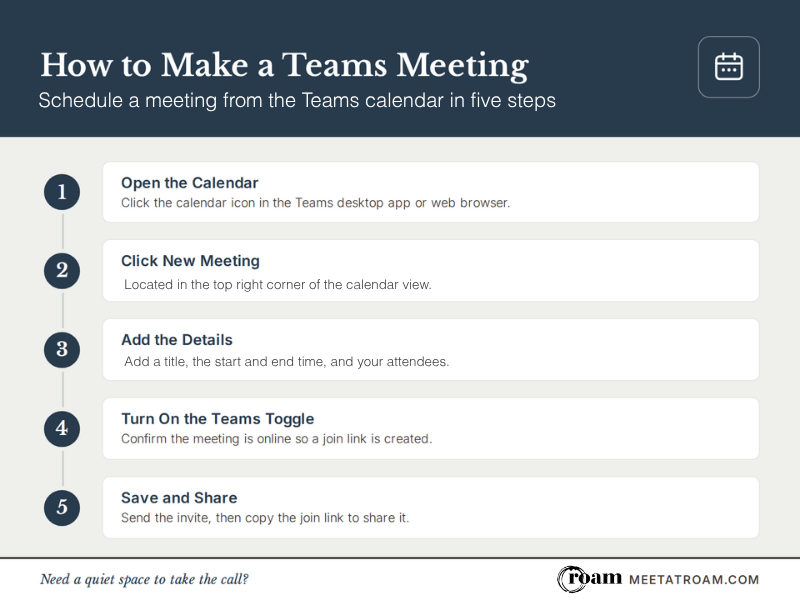
Leveraging theTeams calendar is the main way to schedule a meeting. Here is the full process:
- Open the calendar. Click the calendar icon in the left navigation of the Teams desktop app or web browser.
- Start a new meeting. Select ‘New meeting’ in the top right corner, or click a time slot directly on the calendar.
- Add the meeting details. Give your meeting a title, then set the start and end time. You can also add a description or agenda so every attendee knows the purpose.
- Invite your attendees. Type the name or full email of each team member you want to add. You can add people outside your organization as long as you have their email address
- Confirm the Teams meeting toggle. Meetings scheduled from the calendar are online by default, but check that the Teams meeting toggle is on so a join link is created for all attendees.
- Set it to repeat if needed. For a standing sync, set the meeting as a recurring meeting so you are not rebuilding it every week.
- Save and send. Select Save. Teams sends an invite with the meeting link to every participant’s email inbox automatically.
Other Ways to Make a Teams Meeting
| Method | How to start it | Best for |
| Teams calendar | Calendar icon, then ‘New meeting’ (top right) | Scheduling ahead with set attendees and a time |
| Meet now | Open a chat or channel, then Meet now | An instant, unplanned internal meeting |
| Outlook | Outlook calendar, then ‘New Teams Meeting’ | People who work mostly in Outlook or scheduling a meeting with people outside your organization |
| From a chat | Chat, then ‘More options,’ then ‘Schedule a meeting’ | Meeting with people already in a thread |
| In a channel | Team, then the dropdown by ‘Meet now,’ then ‘Schedule’ | Looping in a whole channel (not private channels) |
The Teams calendar is not your only option for scheduling a virtual meeting. A few alternative options exist depending on the moment:
- Meet now. To start an instant meeting, open a chat or channel and select ‘Meet now.’ It is the fastest way to pull the whole team together in real time without scheduling anything.
- From Outlook. Open your Outlook calendar, select ‘New Teams Meeting’ in the ribbon (or create a ‘New Event’ and switch on the Teams meeting option), add your details and attendees, then send. The Teams link is added for you.
- From a chat. Open the meeting chat with the people you want to include, select ‘More options’ at the top, and choose ‘Schedule a meeting.’
- In a channel. To meet with a specific channel, open the team, select the dropdown next to ‘Meet now,’ and choose ‘Schedule a meeting,’ then use the ‘Add channel’ field. One note: channel meetings are not available in a private channel.
How to Share Your Teams Meeting Link
Anyone you invited gets the link automatically, but you will often need to share it again. Open the meeting in your calendar, select ‘Share’ at the top, and choose ‘Copy join link’. From there you can paste the Teams meeting link into a meeting chat, an email, or a project post so the right people can join.
Tips for a More Effective Teams Meeting
The setup is the easy part. A meeting that moves work forward takes a little more intention:
- Come in with a plan. A short agenda keeps the conversation focused on the topics that matter. And be sure to include adequate time for connection and catch up before starting the content of your meeting.
- Protect your connection. A dropped call kills momentum, so a strong, stable internet connection matters more than almost anything.
- Test your tech early. Check your camera, mic, and screen share a few minutes before the official meeting start time.
- Have your content ready. Open your slide deck or PowerPoint presentation ahead of time so screen sharing is quick.
- Assign roles. A note-taker and a timekeeper keep things tight.
Courtney Vann, Senior Sales Executive at Roam, puts the priorities plainly:
“a productive team is proactive instead of reactive,” with “a plan in place going into their meeting.”
She also names the one piece of tech every meeting depends on, calling “fast reliable Wi-Fi” the number one need. For a Teams call, that is the difference between a smooth meeting and a frozen screen.
Where to Take Your Next Teams Meeting
Knowing how to create a virtual meeting is one thing. Taking it from a kitchen table with kids in the background, or a coffee shop with shaky Wi-Fi, is another. This is where Roam fits in for business owners, startups, and distributed teams:
- A quiet space for a virtual meeting. Book a private office, a desk, or a meeting room at Roam to take your Teams call somewhere professional, with the fast Wi-Fi and A/V the meeting platform needs.
- A place to switch to in person. When a video call is not enough, trade the Zoom meeting or Teams call for a real meeting room. Roam’s meeting spaces include complimentary A/V and a dedicated coordinator.
- A home base for hybrid and remote work. If you split your week between home and the road, a Roam membership gives you a consistent, productive spot to land, with access across all Roam locations.
Morgan Godbold, Senior Director of Marketing at Roam, notes that
every meeting room booking includes the LED screens, video conferencing tools, secure Wi-Fii, and adapters teams need, with an onsite team that is “always available to assist with tech setup and A/V needs.”
That means less time troubleshooting and more time focused on the meeting itself.

Make Roam Your Meeting Home Base
Roam is a hospitality-focused workspace for working professionals across metro Atlanta, Dallas, and Greenville. From a quick virtual meeting to a full team offsite, Roam gives business owners and growing teams a flexible place to work and meet, with month-to-month memberships, private offices, and meeting spaces that scale as you do.
Need a professional space for your next Teams call or in-person meeting? Explore Roam’s convenient locations and book a room or desk that fits your team.
Frequently Asked Questions
You can run Microsoft Teams in a web browser without installing anything, though you can also download Teams as a desktop app for the most reliable video and screen sharing. Either way, open the Teams Calendar, select New meeting, add your details, and save to create the meeting link.
‘Meet now’ starts an instant online meeting right away, which is good for a quick, unplanned sync. Scheduling a meeting through the Teams calendar or Outlook sets a specific date and time, invites attendees in advance, and sends everyone a meeting link.
Yes. When you fill out the meeting details, set the meeting to repeat. A recurring meeting is the simplest way to run a standing weekly or monthly sync without recreating it each time.
Channel meetings are not supported in a private channel. To meet with that group, schedule a standard Teams meeting and invite the members directly, or hold the meeting in a standard channel instead.
A coworking space is a great solution. Roam offers private offices, desks, and meeting rooms with fast Wi-Fi and complimentary A/V, so you have a quiet, professional spot to take any online meeting. You can book by the hour or join as a member.